Buy buttons
Enhance your product pages with flexible purchase options, quantity selection, express checkout buttons, and trust-building payment or shipping info—customize every aspect to increase conversion and create a seamless buying experience across desktop and mobile.
Last updated 5 months ago
Overview
The Buy buttons block provides a focused and flexible purchase area within your product-focused sections. By offering essential buying actions, additional checkout choices, and visual trust elements, this block simplifies how shoppers can add items to their cart and proceed to checkout. Consistent use of Buy buttons can help increase convenience, conversion rates, and overall shopper confidence.
⚠️ Important: Using the Buy buttons block thoughtfully can help streamline the path to purchase and build trust during the most critical part of the shopping journey.
Key components and functionality
The settings in the Buy buttons block are designed to enhance each stage of the buying process. You can tailor how customers add products to their cart, display checkout shortcuts, and provide additional purchase information for a seamless buying experience.
The add to cart experience
This set of controls shapes how customers interact with buying options and adds flexibility to your storefront’s purchase flow.
Add to cart button icon
Enhance your add-to-cart button with an icon to make the purchase action more noticeable. To change the icon, choose one from the available options — Full icons list.The default icon is “shopping cart”.
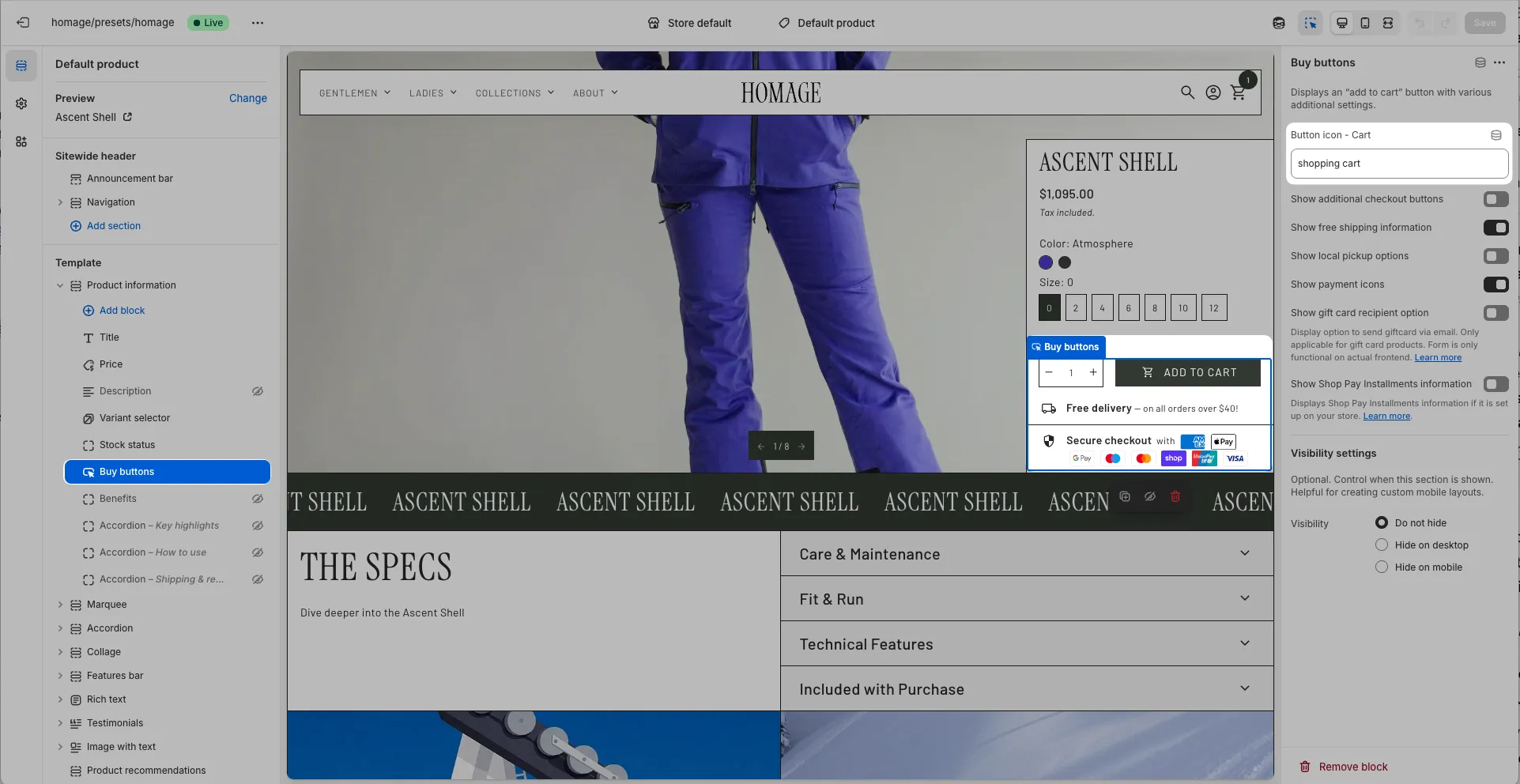
Additional checkout buttons
Show express payment choices, such as digital wallets, directly beneath the standard button.
This is enabled by default, offering quick checkout alternatives.Free shipping information
Display clear messages about free shipping offers to encourage larger orders or immediate purchase.
The default is enabled.Local pickup options
Inform shoppers about in-store or local pickup availability for added fulfillment flexibility.
This option is enabled by default.Payment icons
Present trusted payment icons to build credibility and reassure buyers about accepted payment types.
The default is enabled.Gift card recipient option
Let customers enter recipient information when buying gift cards, supporting a smooth gifting experience.
When enabled, this field appears where applicable and makes purchasing for others easier.Shop Pay installments information
Show details about payment plans or installment options to help customers budget larger purchases.
This is enabled by default and makes alternate payment paths visible.
Block visibility
Visibility settings determine where and when the Buy buttons block is displayed so you can optimize its presence for your storefront and audience.
Do not hide
Default — the block is always visible on all devicesHide on desktop
The block will only display on mobile.Hide on mobile
The block will only display on desktop.
You can adjust visibility to match your customers’ behaviors and to focus attention where it is needed most.
Available in sections
The Buy buttons block can be added to the following sections:
Product information
Featured product
Usage notes
Always preview the Buy buttons block on both desktop and mobile devices to ensure visibility and accessibility.
Activate express checkout and payment icons to build trust and help speed up the transaction process.
Test for accessibility—make sure all buttons and inputs can be reached via keyboard and screen reader for an inclusive user experience.
Only include features that serve your business goals, keeping the cart and checkout experience clear and easy to understand.
💡 Tip: Adjust the settings in the Buy buttons block to suit your store’s different sections and customer segments. A flexible approach will help guide users smoothly from considering a product to making a purchase.